If you use QuickBooks Online, you’ve probably seen both invoices and sales receipts and wondered which one you’re supposed to use.
They both record income — but they’re used in very different situations. Using the wrong one can cause confusion, duplicate income, or Accounts Receivable issues.
A sales receipt in QuickBooks Online is used when a customer pays you at the time of sale. Unlike an invoice, a sales receipt records both the income and the payment in one step. Knowing when to use a sales receipt — and when not to — helps keep your books accurate and prevents Accounts Receivable issues.
Let’s break it down simply.
What Is a Sales Receipt in QuickBooks Online?
A sales receipt is used when you get paid at the same time you make the sale.
There is:
- No outstanding balance
- No waiting on payment
- No Accounts Receivable involved
Think of a sales receipt as “money received immediately.”
Common examples:
- Cash sale
- Credit card payment
- ACH payment received on the spot
- Online checkout where payment is automatic
When you create a sales receipt, QuickBooks:
- Records the income
- Records the payment
- Deposits it to the account you choose
All in one step.
Sales Receipt vs Invoice: What’s the Difference?
Use an invoice when:
- You are billing the customer and getting paid later
- You need to track Accounts Receivable
- The customer owes you money after the sale
Use a sales receipt when:
- The customer pays immediately
- There is no balance due
- You don’t need to track Accounts Receivable
If the customer has already paid, you do not need an invoice.
When Should You Use a Sales Receipt?
Sales receipts are best when:
- Payment is collected at checkout
- You sell products or services and get paid right away
- You don’t want open invoices on your books
Common businesses that use sales receipts:
- Retail shops
- Service providers paid on the spot
- Event-based businesses
- Online sales with immediate payment
When You Should Not Use a Sales Receipt
Do not use a sales receipt if:
- You are waiting to be paid later
- You need to send a bill to the customer
- You want to track unpaid balances
In those cases, create an invoice instead.
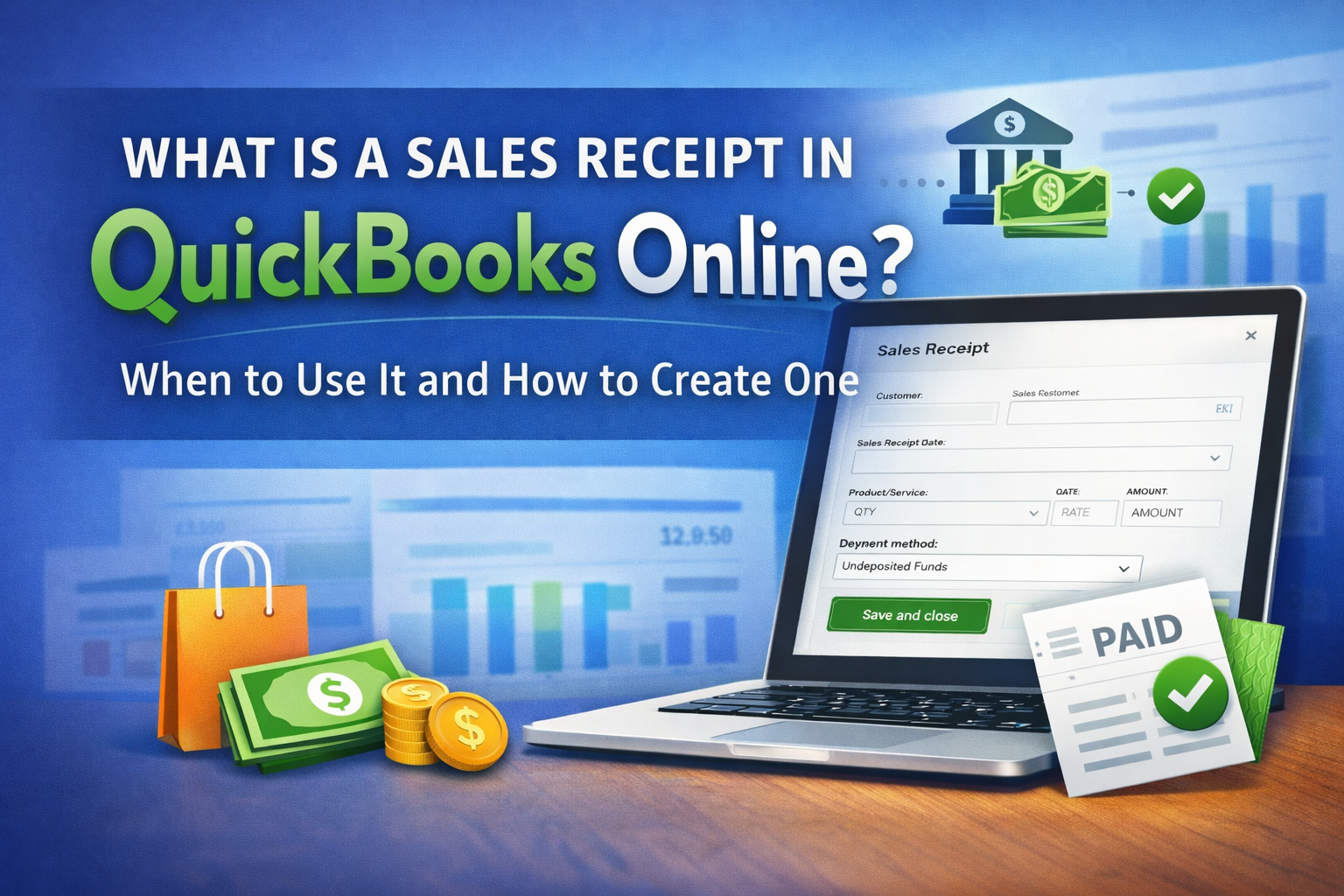
How to Create a Sales Receipt in QuickBooks Online (New UI)
Here’s how to create one step by step:
- Click + New
- Select Sales receipt
- Choose the customer (optional, but recommended)
- Enter:
- Product or service
- Amount
- Sales tax (if applicable)
- Choose the Payment method
- Select the Deposit to account
- Undeposited Funds (most common)
- Or your bank account
- Click Save and close
That’s it. The sale and payment are recorded together.
Choosing the Right “Deposit To” Account
This part matters more than people think.
Use Undeposited Funds when:
- You batch multiple payments together
- You want deposits to match your bank exactly
Use your bank account when:
- The payment goes directly to the bank
- There’s no batching involved
If your deposits don’t match later, this is usually the reason.
Common Sales Receipt Mistakes I See
- Using a sales receipt when the customer hasn’t paid yet
- Creating both an invoice and a sales receipt for the same sale
- Depositing directly to income instead of the correct account
- Mixing Undeposited Funds and bank deposits inconsistently
These mistakes can cause:
- Duplicate income
- Reconciliation issues
- Confusing reports
Final Tips for Using Sales Receipts Correctly
- Use sales receipts only when payment is immediate
- Don’t create invoices unless someone actually owes you money
- Be consistent with your deposit account choice
- Review your income and bank deposits monthly
Not Sure Which One You’re Using?
If your books show unpaid invoices, duplicate income, or deposits that won’t reconcile, sales receipts vs invoices are often the root of the problem.
I help small businesses clean this up every day. If you’re unsure whether your QuickBooks setup is using the right workflows, feel free to contact me through my website.